
Quick Start
Set up your LinumIQ Smart Home Kit Lite and review the default behavior
1. Position the Smart Plug
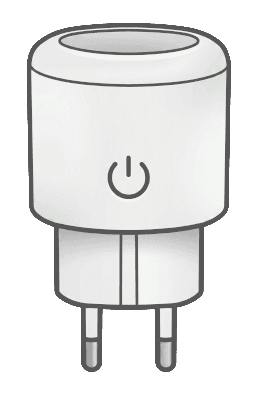
Place the smart plug where you want to switch a connected device and monitor power usage.
2. Place the Blue Ring Button
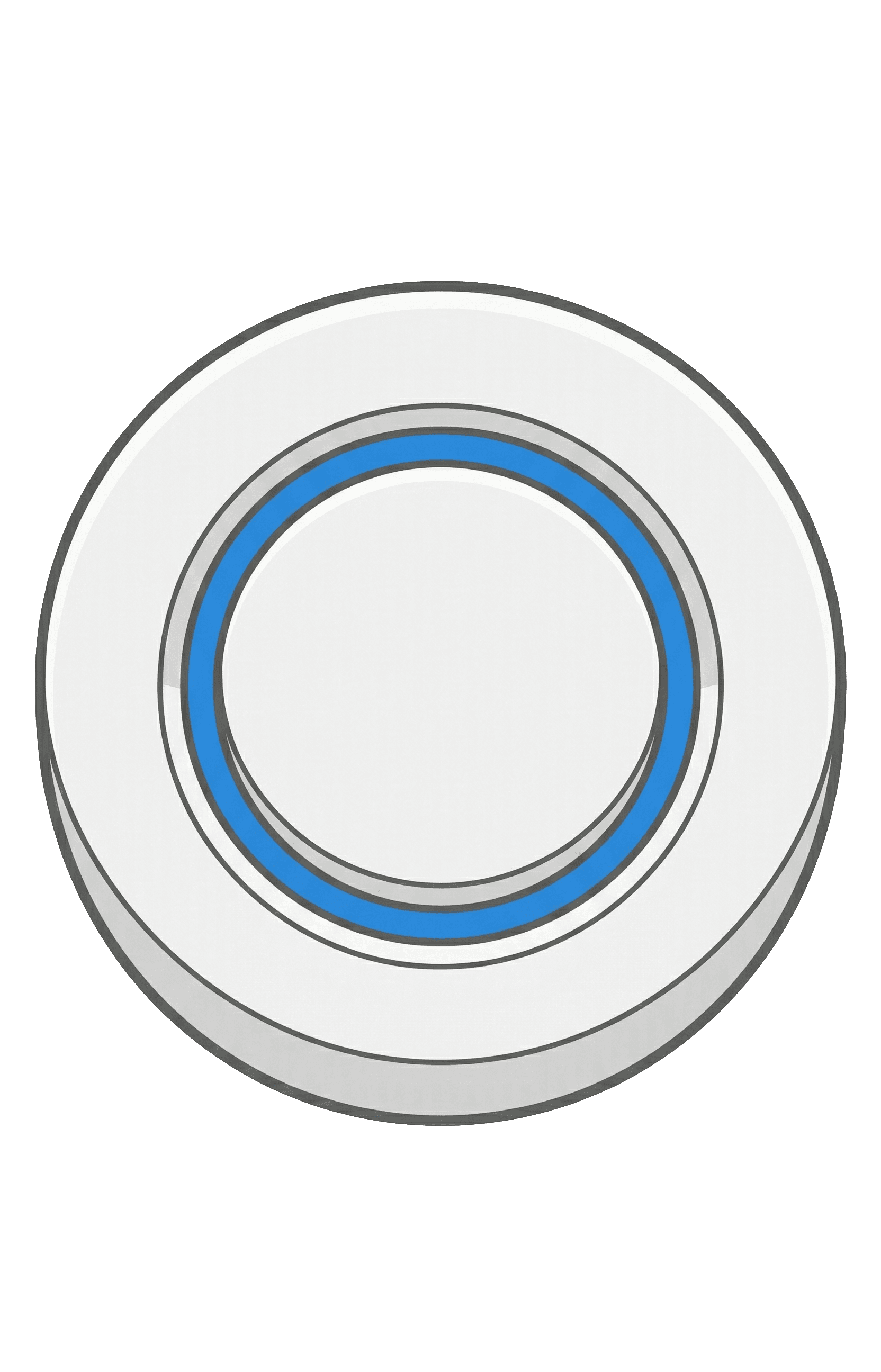
Place the button somewhere easy to reach. You will use it to toggle the smart plug.
3. Mount the Door/Window Sensor
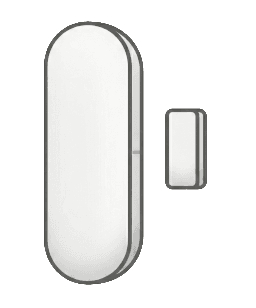
Mount the sensor and magnet on a door or window.
Tip: Check sensor state in Home Assistant before final mounting to fine-tune alignment.
4. Connect Home Assistant Green
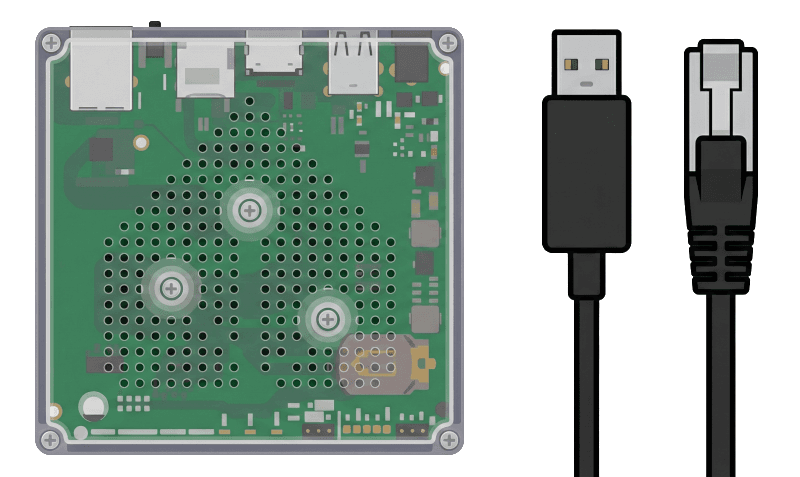
Before powering on:
- Connect the network cable.
- Plug in USB extensions/dongles.
- Plug in the power supply.
- Wait for startup.
5. Access Your Smart Home and Verify Devices

Browse to http://homeassistant.local:8123 or use the Home Assistant app.
Log in with:
| Field | Value |
|---|---|
| User | user |
| Password | LinumIQ |
After login, verify:
- Pressing the blue ring button toggles the smart plug.
- The smart plug reports power usage.
- The door/window sensor updates between open and closed.
Action Required
Change your password immediately after your first login to enhance account security.
Default Configuration (Out of the Box)
These functions are pre-configured for the LinumIQ Smart Home Kit Lite.
Blue Ring Button Controls the Smart Plug
Pressing the blue ring button toggles the smart plug on or off.
Smart Plug Power Monitoring
The smart plug can switch the connected device and reports power usage in Home Assistant.
Door/Window Sensor Status
The sensor reports open and closed states in Home Assistant.